User guide
From your first sign-in to reading your results. Screenshots use sample data.
1Get your account and sign in
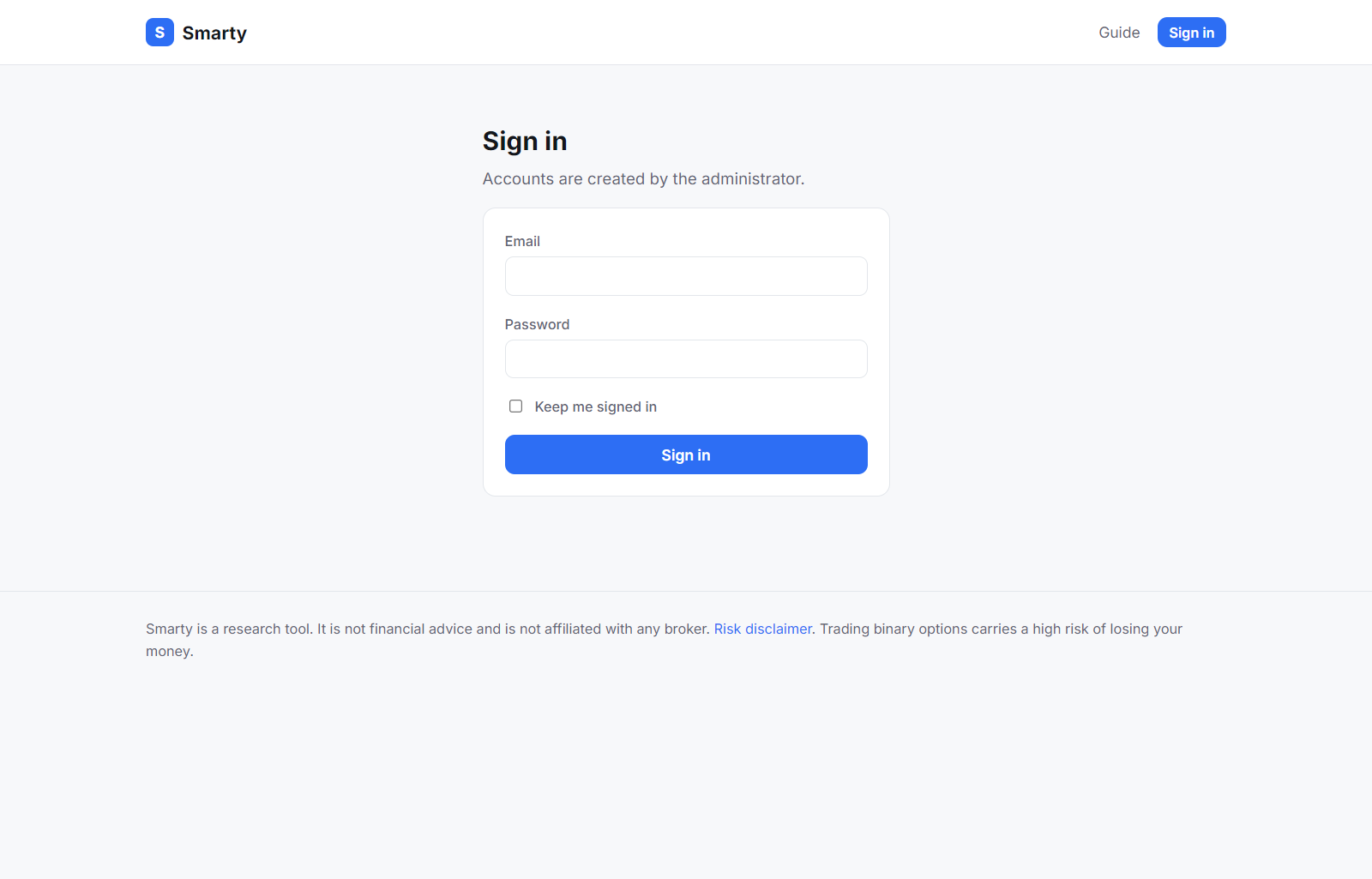
There is no public sign-up. The administrator creates your account and sends you your email and a password. Open https://sk.mindsetbahrain.com/login and sign in.
2Read and accept the risk disclaimer
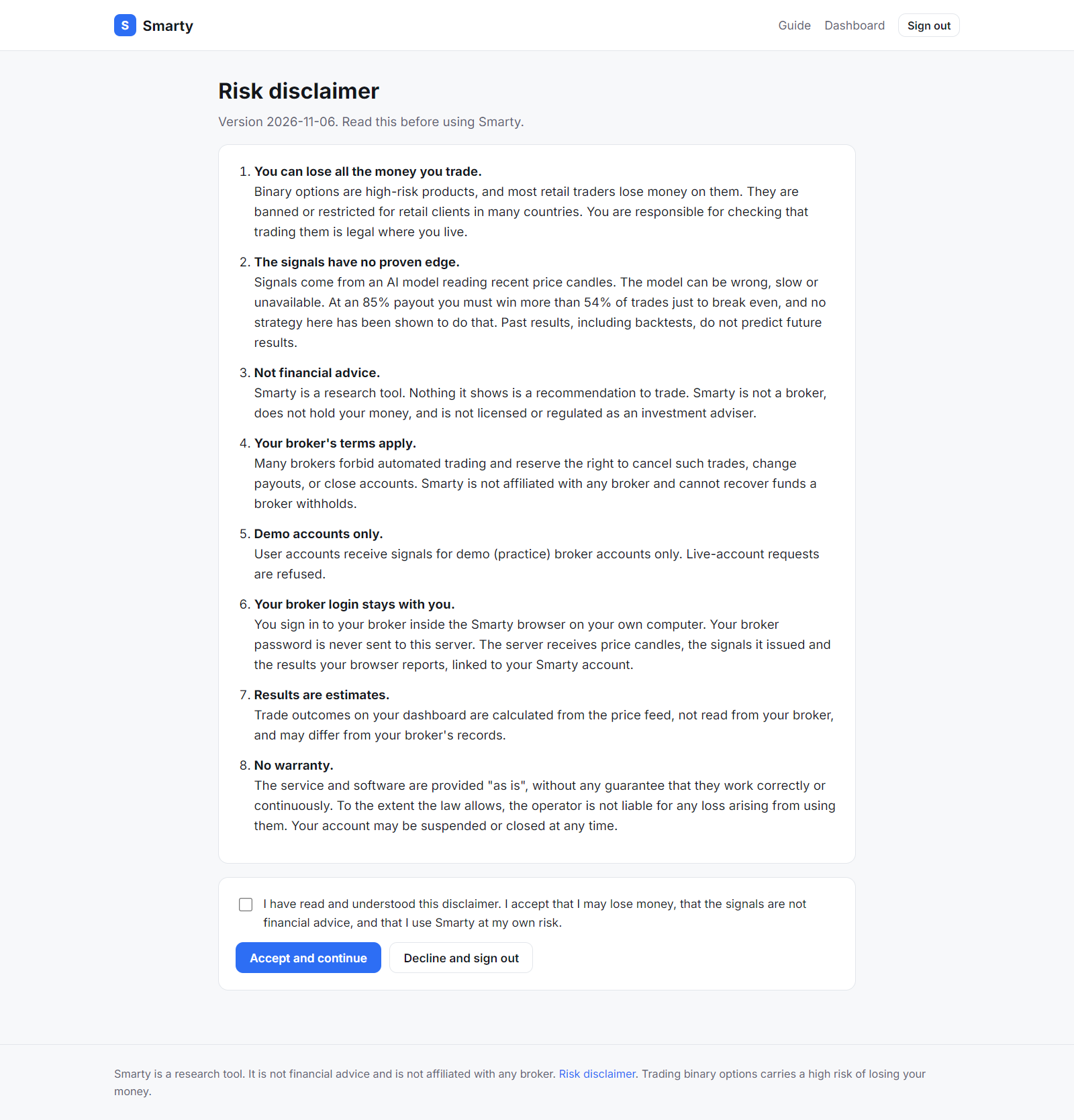
The first time you sign in, you see the risk disclaimer. Read it, tick the box and press Accept and continue. Until you accept, the dashboard and the Smarty browser don't work. If the disclaimer changes, you'll be asked to accept it again.
3Generate your browser token
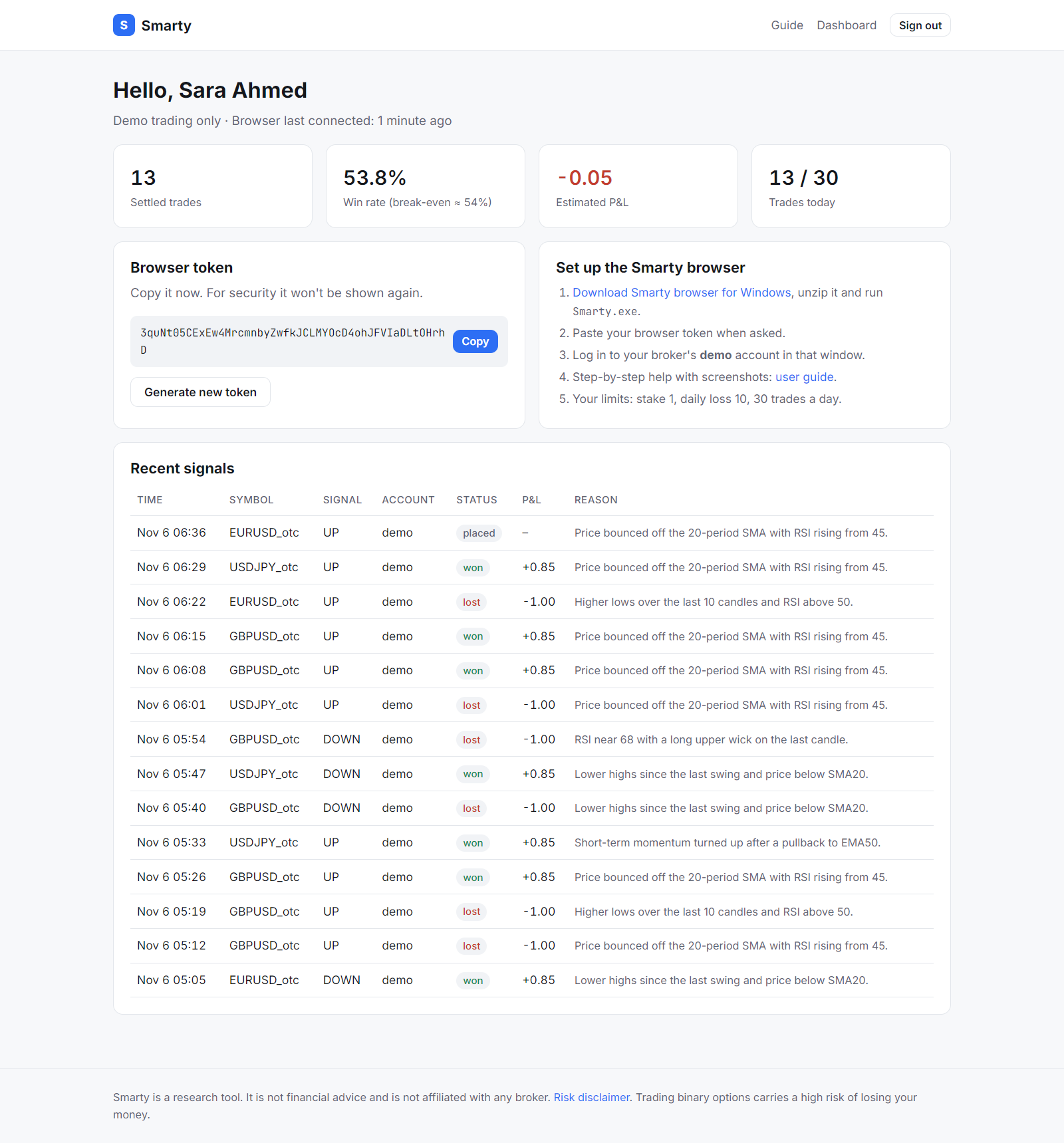
On your dashboard, press Generate token, then Copy. The token connects the Smarty browser to your account.
4Install and connect the Smarty browser
- On the dashboard, click Download Smarty browser for Windows.
- Right-click the downloaded zip, choose Extract All, and open the Smarty folder.
- Run Smarty.exe. Windows may show "Windows protected your PC" because the app isn't code-signed. Click More info, then Run anyway.
- Paste your token and press Connect. Smarty restarts and opens your broker's sign-in page.
- Sign in to your broker's demo account inside the Smarty window and open a chart.
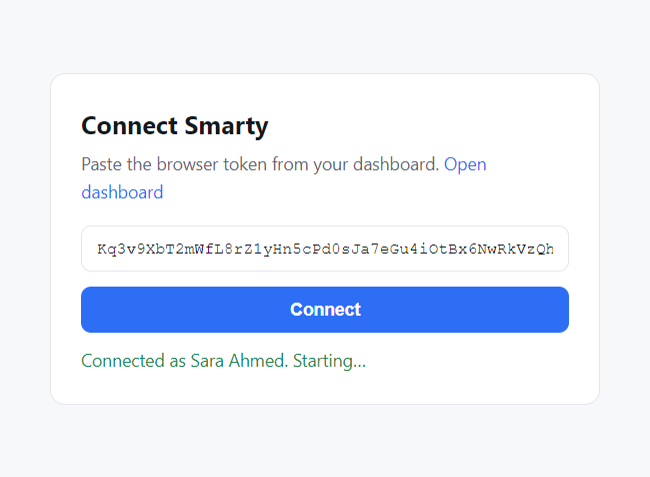
The Smarty menu has Open dashboard, Change token… and Open log folder. Keep the Smarty window open while you want signals recorded.
5Read your results
The top of the dashboard shows:
- Settled trades: signals whose result is known.
- Win rate: share of settled trades that won. At an 85% payout you need more than about 54% just to break even.
- Estimated P&L: worked out from the price feed, not read from your broker, so it can differ from your broker's records.
- Trades today: compared with your daily cap.
Recent signals lists each signal with its direction, status (placed, won, lost, draw or failed) and the model's one-line reason. Your account also has a daily loss limit. When you reach it, no more signals are issued until the next day (UTC).
6Calibration and trading setup
Everything here is done from the Smarty window's menus, with no files to edit.
Help calibrate the price reader
- Sign in to your broker's demo account in Smarty and open a chart.
- Turn on Calibration → Record market data. The window title shows how many messages were recorded.
- Wait about a minute, switch between two or three assets, then choose Calibration → Send sample to server.
Emails, tokens and keys are masked before sending. The administrator uses the sample to tune how Smarty reads prices. When prices are read correctly, the title bar shows a growing ticks count.
Set up the trading buttons
- With a demo chart open, choose Calibration → Set up trading buttons…
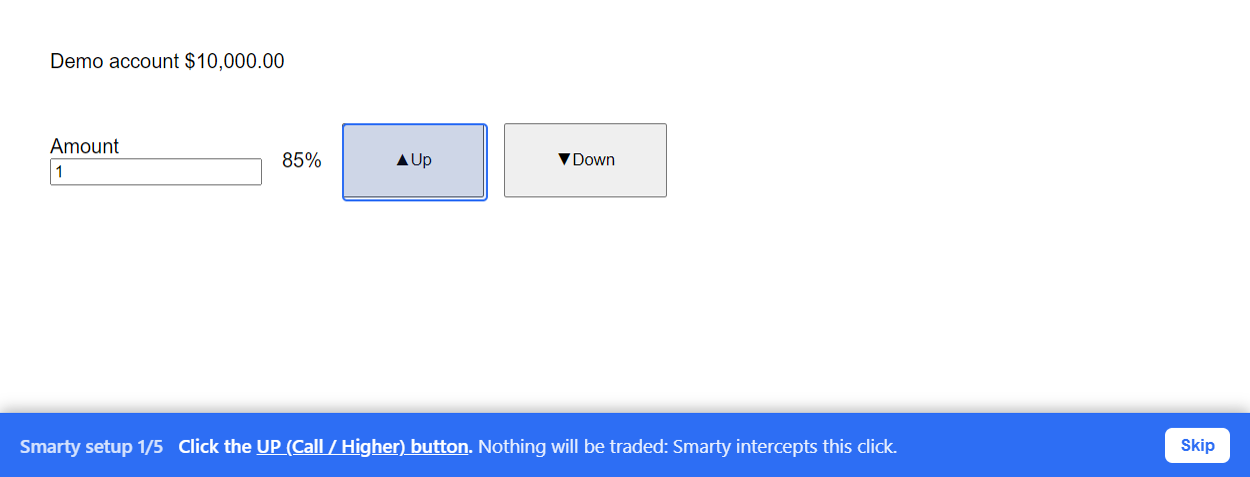
- A blue bar at the bottom asks you to click five things in turn: the Up button, the Down button, the amount field, the payout % and the account type label. Smarty highlights what it will pick. Your clicks are intercepted, so nothing is traded. Esc or Skip keeps a step unchanged.
- A check window then shows what Smarty found. Run it again any time with Calibration → Test trading buttons.
Turn on autotrade
- Choose the asset in Trading → Trade symbol. Assets appear there once Smarty has seen their prices.
- Tick Trading → Autotrade. Smarty checks that setup is complete and asks you to confirm.
Smarty types your account's stake into the amount field before each trade and won't click if the field doesn't show that amount. If it can't confirm the page shows a demo account, it doesn't trade.
Troubleshooting
- "That token is not valid."
- The token was mistyped, replaced by a newer one, or revoked. Generate a new token on the dashboard and use Smarty → Change token….
- "Accept the risk disclaimer on your dashboard first."
- Sign in on the website, accept the disclaimer, then press Connect again.
- "This account is disabled."
- The administrator has disabled your account. Contact them.
- "Cannot reach https://sk.mindsetbahrain.com"
- Check your internet connection. If the site opens in a normal browser but not in Smarty, restart Smarty.
- No signals appear
- Keep a chart open in the Smarty window. The server needs about an hour of one-minute candles for a symbol before it issues signals for it, and it skips when the model sees no clear direction.
- Something else
- Use Smarty → Open log folder and send smarty.log to the administrator.